Introduction
If you want to securely share selected passwords (or groups of passwords) with other team members while using KeePassXC, the built-in KeeShare feature is your best option. Rather than sharing your full database (with all entries), KeeShare lets you share just a subset (a group) with designated access. GitHub+2Medium+2
This article walks through the setup and best practice steps.
Step 1: Enable KeeShare in global settings
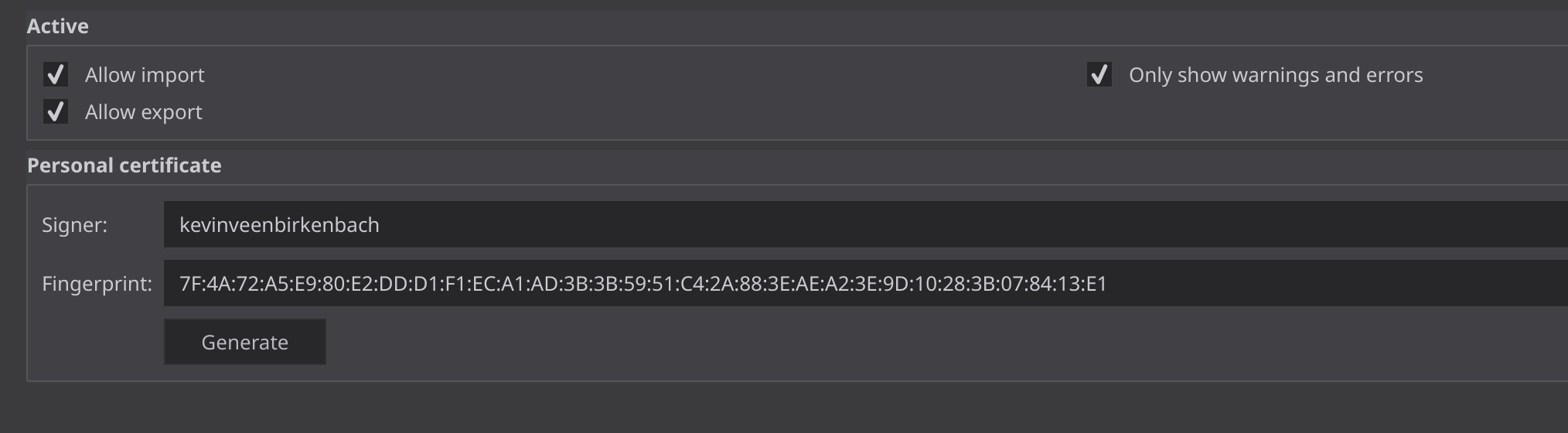
- Open KeePassXC → Tools → Settings → KeeShare (or Extras → KeeShare Einstellungen, depending on locale).
- Check the boxes:
- Allow import – to allow this installation to import shared groups.
- Allow export – to allow this installation to export groups for sharing.
- Optionally: enable signed shares and encrypted shares (recommended).
- Generate your personal certificate/signing key if prompted (you’ll see a “Signer” name + fingerprint).
Medium+1 - Click OK/Apply and restart KeePassXC (to ensure the new tab appears).
Best practice: Use a unique signer name (e.g.,
YourName-TeamShare) and keep the fingerprint available for your team so they can verify your shares.
Step 2: Create a dedicated group to share
- In your database, right-click on a parent group (or root) → New Group…
- Name it appropriately (e.g.,
PR-Shared,Infra-Shared). - Move the entries you intend to share into this group.
Why: Sharing at the group level ensures you have clear boundaries about what is shared. Many users mistakenly try to share a single entry, but KeeShare works with groups. Reddit+1
- (Optional) Set an icon or color to visually mark this group as “shared”.
Step 3: Configure the group for sharing
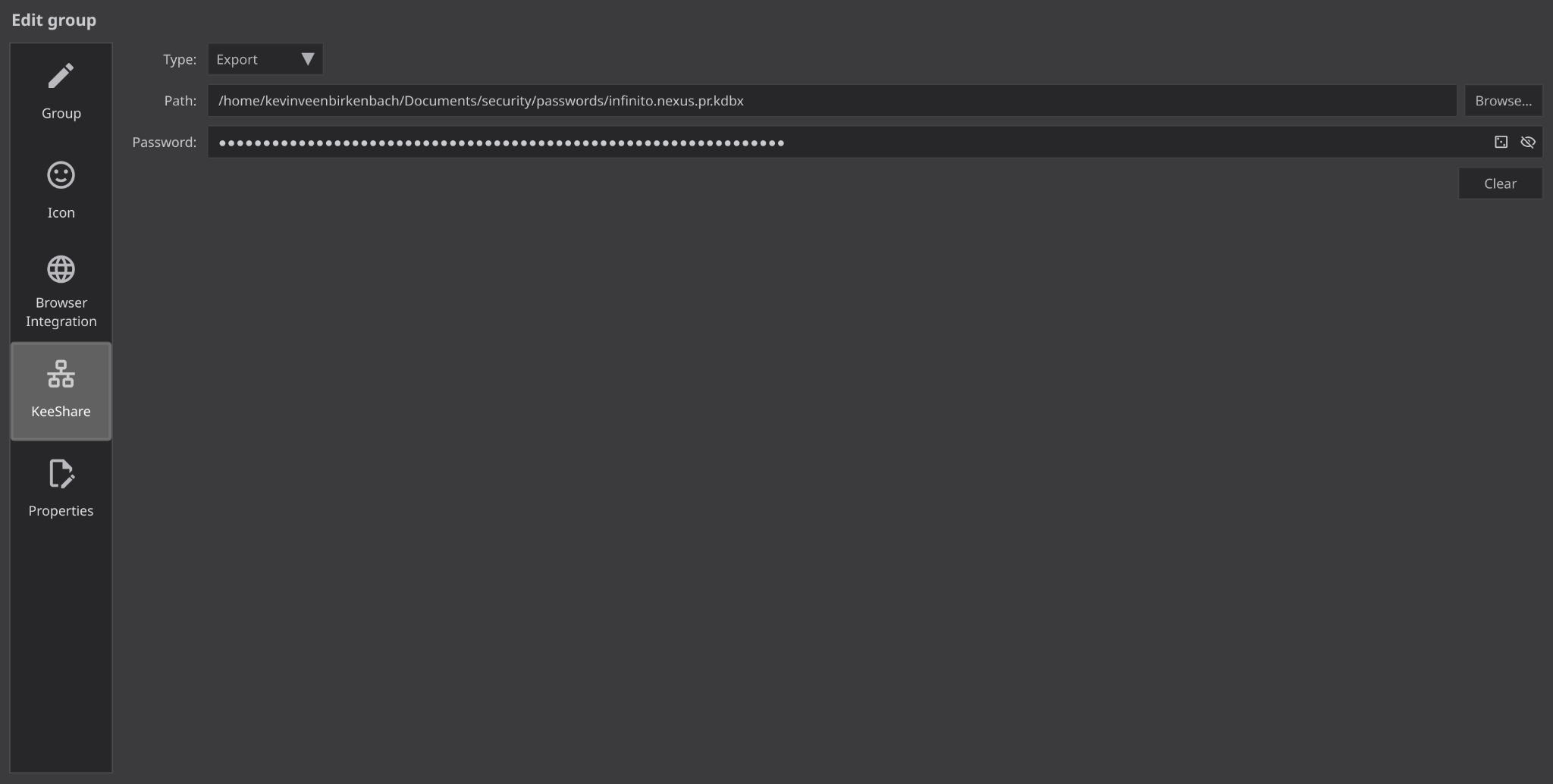
- Right-click the new group → Edit Group…
- In the left sidebar of the dialog, click KeeShare.
- Set Type:
Export→ you are the sharer (others will import).Import→ you will import from others.Synchronize→ two-way sync (less common for shared secrets).
- For
Exporttype:
- Path: specify where the share file goes, e.g.,
/home/youruser/Nextcloud/KeeShare/PR-Team.shareor\\fileserver\share\pr-team.share. - Password: set a strong password for this share file (if using encryption).
- Click OK to save. KeePassXC will create the
.sharefile (or whatever you named it) in the target path.
Medium
Best practice: Store the share file on a sync platform such as Nextcloud, Syncthing, or a versioned network share. Everyone in your team accesses the same path to keep things consistent. txtechnician
Step 4: Share the file with your team
- Confirm that the
.sharefile is present and synced in the shared location. - Inform your team of the path and the share password (if set).
- Also provide your signer fingerprint so they can verify the share’s authenticity.
Step 5: Team members import or sync
For each team member:
- In their KeePassXC installation (with Allow import checked):
- Right-click on the group in which they want the shared entries → Edit Group…
- Go to the KeeShare tab.
- Set Type =
Import. - Path = the shared file path (same as above).
- Enter the share password (if any).
- Click OK → KeePassXC will import the shared entries into that group.
- Going forward: When the owner updates entries in the export group, and the share file is updated/synced, team members will receive updates when they open or sync their database.
Best Practice Guidance & Caveats
- Use groups (not individual entries) for sharing — simpler and less error-prone.
- Use a dedicated share group per team or topic (e.g.,
PR-Team,Infra,Admin) to control access and rotation. - Always store the share file in a versioned, secure sync location (Nextcloud with file history, etc.).
- Use strong unique passwords for the share file if encryption is enabled.
- Consider signed shares to verify sender identity.
- Remember: KeeShare is not a full enterprise secret-manager. For advanced delegation, audit logs, or temporary access, a dedicated tool may be preferable. txtechnician
- Note: Some users report quirks (e.g., groups not syncing) — test your setup. GitHub
Summary
By following these steps, you establish a secure, controlled way to share selected credentials with team members via KeePassXC’s KeeShare. You retain control over what is shared, ensure encryption and signing, and avoid sharing full master passwords or entire vaults.